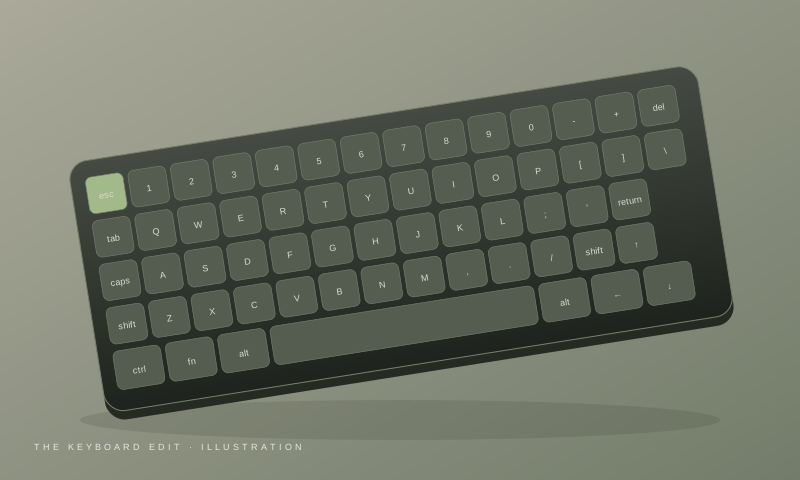
Best Wireless Keyboards for Work & Productivity
A practical buying guide to the best wireless keyboards for office work, coding, design and everyday productivity — picked for comfort and connectivity, not RGB lighting.
THE PICKS EDITORS 5 May 2026
Shape, grip, DPI, connectivity, battery, weight — everything that actually matters when picking a wireless mouse for office work, design or development.
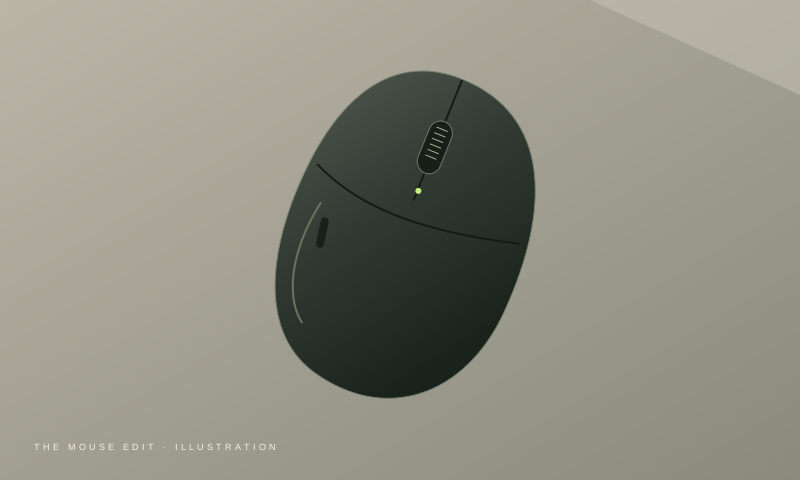
A mouse is one of the most frequently used accessories in a computer setup, yet it's often an afterthought when building a workspace.
The right mouse can make everyday tasks more comfortable, especially if you spend several hours working with documents, spreadsheets, design software, browsers, or development tools.
But choosing a mouse isn't simply about finding the model with the highest DPI or the most buttons.
For productivity, factors such as shape, size, weight, connectivity, sensor performance, scroll wheel, buttons, battery life and software support can matter much more.
This guide explains what to look for when buying a wireless mouse for work and helps you choose a model based on how you actually use your computer.
Editor's note: Prices, availability and product specifications can change. Always check the latest information before purchasing.
If you're buying a wireless mouse primarily for work, prioritize these features: comfortable shape, good tracking, reliable wireless connectivity, a comfortable scroll wheel, useful programmable buttons, battery life, compatibility with your computer, and a size and weight that suit your hand.
You don't necessarily need a gaming mouse or an extremely high DPI setting for productivity.
Before looking at individual features, think about what you actually do on your computer.
You probably want:
You may benefit from:
Useful features include:
You may want:
The key point is that a gaming mouse isn't automatically the best productivity mouse.
You can have the best sensor in the world, but if the mouse doesn't fit your hand, you probably won't enjoy using it for eight hours a day.
Wireless mice generally fall into several shape categories. There isn't a universally correct shape — your hand size and grip style matter more than the marketing description.
Symmetrical — the left and right sides have a similar shape. Good for:
Ergonomic — designed specifically to support a particular hand orientation. Good for:
Ambidextrous — designed to work for either hand. Good for:
Your grip affects which mouse shape will feel comfortable. If you're unsure about your grip, simply place your hand naturally on your current mouse and observe where your palm and fingers sit.
Your entire palm rests on the mouse. You may prefer:
Your palm rests partially on the mouse while your fingers are more arched. You may prefer:
Only your fingertips contact the mouse. You may prefer:
DPI stands for dots per inch and describes how far the cursor moves for a given physical mouse movement. A higher DPI isn't automatically better.
For normal productivity, you usually don't need extremely high DPI settings. What matters more is tracking consistency, cursor control, sensor quality and your preferred sensitivity.
A good productivity mouse should feel predictable and controllable.
This is another important decision.
Bluetooth is especially useful if you use MacBooks, Windows laptops, tablets, or multiple computers. The major advantage is that you don't necessarily need a USB receiver, which also makes Bluetooth mice convenient for travel.
A 2.4GHz mouse generally uses a dedicated USB receiver. Advantages include:
Some mice support both Bluetooth and 2.4GHz. This can be particularly useful if you use a laptop and a desktop — you can use Bluetooth with one device and the receiver with another. Some advanced mice can also switch between multiple devices.
If you use multiple computers, look for a mouse that supports device switching — for example, Device 1 for your work laptop, Device 2 for your personal desktop and Device 3 for a tablet.
Instead of moving the mouse receiver between devices, you can switch between them using a button. This is one of those features that might seem unnecessary at first but can become extremely convenient once you use it.
You may spend more time scrolling than moving the pointer. That's why the scroll wheel deserves attention.
Some premium mice offer multiple scrolling modes — for example, a wheel may allow you to switch between precise scrolling and fast/free scrolling. This can be particularly useful when navigating long documents, spreadsheets or web pages.
A good scroll wheel should provide:
A basic mouse might have left click, right click and a scroll wheel — that's enough for most people.
But additional buttons can be extremely useful for productivity. You could assign a back button, forward button or custom shortcut to actions like copy, paste, or app-switching.
Click noise matters more in shared spaces such as meetings or bedrooms. If you primarily work alone, this feature may be less important.
For a permanent desk setup, rechargeable can be more convenient.
Advantages:
Disadvantages:
For a travel mouse, replaceable batteries can still make sense.
Advantages:
Disadvantages:
Gaming mouse marketing often focuses heavily on reducing weight. For productivity, however, there isn't a universally ideal weight.
A very light mouse may feel quick. A heavier mouse may feel more stable. Your preference depends on desk surface, grip, sensitivity, hand size and how frequently you move the mouse.
For design work, you may prefer a mouse that feels stable and controlled rather than simply being as light as possible.
Not necessarily. Designers using Figma, Photoshop, Illustrator, Premiere Pro or After Effects can use almost any accurate modern mouse. However, a few features can make the workflow more convenient: programmable buttons for frequently used commands, smooth scrolling for large files, precise tracking for selecting small objects, a comfortable shape for long sessions, and multi-device support if you work across multiple computers.
You don't need a gaming mouse just because you're a designer.
Vertical mice are designed to place the hand in a more upright position than conventional mice, reducing the amount of forearm rotation required compared with a traditional mouse position.
They can be worth considering if you specifically prefer that type of grip. However, the transition can take some time — if you're buying your first vertical mouse, consider whether you're comfortable with the different pointer-control experience before committing to an expensive model.
Mistake 1: Choosing Based Only on DPI
More DPI doesn't automatically mean better tracking or better productivity.
Mistake 2: Ignoring Hand Size
A mouse that feels great to one person may feel uncomfortable to another.
Mistake 3: Buying Too Many Buttons
Extra buttons are useful only if you actually use them.
Mistake 4: Ignoring Connectivity
Make sure the mouse works with your laptop or desktop without requiring adapters you don't have.
Mistake 5: Buying a Gaming Mouse for Office Work
Gaming features can be useful, but they aren't necessarily valuable for productivity.
Mistake 6: Ignoring the Scroll Wheel
For office work, scrolling is one of the most common mouse actions.
Mistake 7: Looking Only at the Price
A slightly more expensive mouse that remains comfortable for years can be better value than replacing a cheap mouse repeatedly.
| Feature | Office | Designer | Developer | Gaming + Work |
|---|---|---|---|---|
| Comfort | ★★★★★ | ★★★★★ | ★★★★★ | ★★★★★ |
| Tracking | ★★★★★ | ★★★★★ | ★★★★★ | ★★★★★ |
| Quiet clicks | ★★★★★ | ★★★★★ | ★★★★★ | ★★★★★ |
| Programmable buttons | ★★★★★ | ★★★★★ | ★★★★★ | ★★★★★ |
| Bluetooth | ★★★★★ | ★★★★★ | ★★★★★ | ★★★★★ |
| 2.4GHz | ★★★★★ | ★★★★★ | ★★★★★ | ★★★★★ |
| Multi-device | ★★★★★ | ★★★★★ | ★★★★★ | ★★★★★ |
| RGB | ★★★★★ | ★★★★★ | ★★★★★ | ★★★★★ |
The ratings aren't technical measurements — they're simply a practical guide to which features tend to matter for each use case.
Look for a comfortable Bluetooth mouse with good scrolling and long battery life. This category is ideal for office workers and everyday users.
Look for a comfortable mouse with precise tracking, programmable buttons and good scrolling. You don't necessarily need gaming-grade specifications.
A multi-device mouse with programmable buttons and a comfortable shape can be particularly useful.
Look for 2.4GHz wireless, Bluetooth, accurate tracking and programmable buttons. A dual- or tri-mode mouse can be especially versatile.
What size is my hand?
Small, medium or large?
What grip do I use?
Palm, claw or fingertip?
How many hours do I use a mouse?
If it's 6–8 hours every day, comfort should be one of your highest priorities.
Do I use multiple computers?
If yes, consider multi-device support.
Do I need Bluetooth?
Especially useful for laptops and tablets.
Do I need 2.4GHz?
Useful if you want a dedicated wireless connection or also game.
Do I need programmable buttons?
Particularly useful for designers, developers and power users.
Do I want rechargeable batteries?
Decide whether charging or replaceable batteries better fit your routine.
Yes. Modern wireless mice can provide reliable tracking and long battery life while keeping your workspace free from cables.
Bluetooth is convenient for laptops and multi-device setups, while 2.4GHz can provide a dedicated wireless connection and is particularly useful if you also game.
You don't need extremely high DPI for normal office work. Comfort, tracking consistency and controllability are generally more important.
A vertical mouse can feel more natural for some users because of its more upright hand position, but it is not automatically better for everyone. It may take time to adjust to.
Two main buttons plus a scroll wheel are enough for basic work. Additional programmable buttons are useful if you regularly use shortcuts or application commands.
They can, but they don't need to. A comfortable productivity mouse with accurate tracking and useful programmable buttons may be a better fit for design work.
Neither is universally better. Some people prefer a lightweight mouse for quick movement, while others prefer a heavier mouse for stability and control.
There isn't a single "best wireless mouse" for everyone.
For everyday productivity, prioritize comfort, reliable tracking, scrolling and battery life. For designers, add programmable buttons and precise control to the priority list. For developers, multi-device support and shortcut buttons can make a real difference. And if you use your computer for both work and gaming, consider a mouse with 2.4GHz + Bluetooth connectivity rather than buying a basic office mouse.
The most expensive mouse isn't necessarily the best one for you. The best mouse is the one that fits your hand, matches your workflow and stays comfortable throughout the workday.
Picks by ELBAF independently researches and evaluates products based on their features, intended use, value and available information. Some links on this page may become affiliate links when the site participates in affiliate programs. If you purchase through an affiliate link, we may earn a commission at no additional cost to you.
Prices, availability, specifications and offers can change. Always verify the current information on the retailer's website before purchasing. As an Amazon Associate, Picks by ELBAF may earn from qualifying purchases.
Read our full disclosureA practical buying guide to the best wireless keyboards for office work, coding, design and everyday productivity — picked for comfort and connectivity, not RGB lighting.
Looking for an external SSD for design, video editing or everyday storage? Learn what matters when choosing an SSD and which features creators should prioritize.
Learn how to choose a USB-C hub for your laptop, including HDMI, USB-A, Ethernet, SD cards, power delivery and data-transfer requirements.